
1. About
This article explains how to track your COGS using the purchase based COGS method. You can also view this video to understand more.
If you’re not sure if this is the right method for you, first check out our article How to choose your COGS tracking method in Finaloop.
When you choose purchase based COGS:
Inventory-related purchases are categorized directly into the relevant P&L account under Cost of Goods Sold (COGS).
No changes are made to the balance sheet during the year.
We make a year-end adjustment to your balance sheet so that the inventory closing balance at year end is correct for filing your tax return.
You can also check out our step by step walkthrough to learn more.
2. When is purchase based COGS right for you?
The purchase based COGS method is a great choice if you're a brand that:
Sells all products through dropshipping, and vendor invoices are issued on or very close to the date of the customer order or the date when payments to the vendor are made; or
Doesn’t hold, on average, more than $3,000 of inventory each month.
3. How to set up purchase based COGS
As a one-time task, we’ll need you to enter your inventory closing balance (c/b) from the previous financial year. This becomes your Finaloop opening balance (o/b) and ensures consistency year over year. You can get this value from your previous year’s balance sheet or from your tax return, if it was already filed.
Here's an example:
12/31/2024 Closing balance (previous books) $2,500
01/01/2025 Opening balance (Finaloop) $2,500
>To set your Finaloop opening balance:
From the menu pane, navigate to Inventory>Settings>Opening Balance tab.
Enter the inventory balance from the previous year.
Activate the checkbox if you are sure that you qualify for the “Exception for Small Business Taxpayers” - see the section Exception for small business taxpayers in this article.
That’s it.
We'll automatically update your COGS in your P&L each time you purchase inventory.
The opening balance you added will be the balance shown as inventory in your Balance Sheet until we make an adjustment for any unsold inventory at the end of the year. To see an example of what your financials will actually look like under purchase based COGS, see the section in this article Purchase-based COGS in the P&L and Balance Sheet.
NOTE: Use the on-screen FAQs if you need more help with finding your inventory balance. See also the section Inventory methods and categories in this article.
4. Tracking your inventory purchases
The list of purchases you see in the Purchases tab of your inventory screen are your inventory-related transactions from your banks or credit cards or from any bills in Finaloop. If relevant, you can also track inventory-related payroll transactions.
To view / track inventory transactions, navigate to the Purchases screen on the side menu pane (Inventory>Purchases tab).

The screen has three sections.
Filters (#1)
Filters (#1)
Filter options:
Time period: e.g, today, last month, last quarter etc.
Date range: from and to
Status: in process, in transit, received
Search: enter text or a value
Inventory totals (#2)
Inventory totals (#2)
Global totals
Total purchases
Category totals
On your screen, you’ll only see the relevant categories for your business.
Dropshipping
Finished products
Shipping & freight-in
Supplies & materials
Packaging materials
Production costs
Consignment
Custom fees & services
Dead inventory
Other inventory indirect costs
Production labor costs
Duties & tax
Inventory insurance
Pallet costs
Shipping surcharge
Vendor fees
Product donations
Product giveaways
Drill down details
Click the category to filter by the purchases for each category.
You can see the inventory categories on the Purchases tab when you click the link Learn about purchase categories just below the inventory totals.
Transaction details (#3)
Transaction details (#3)
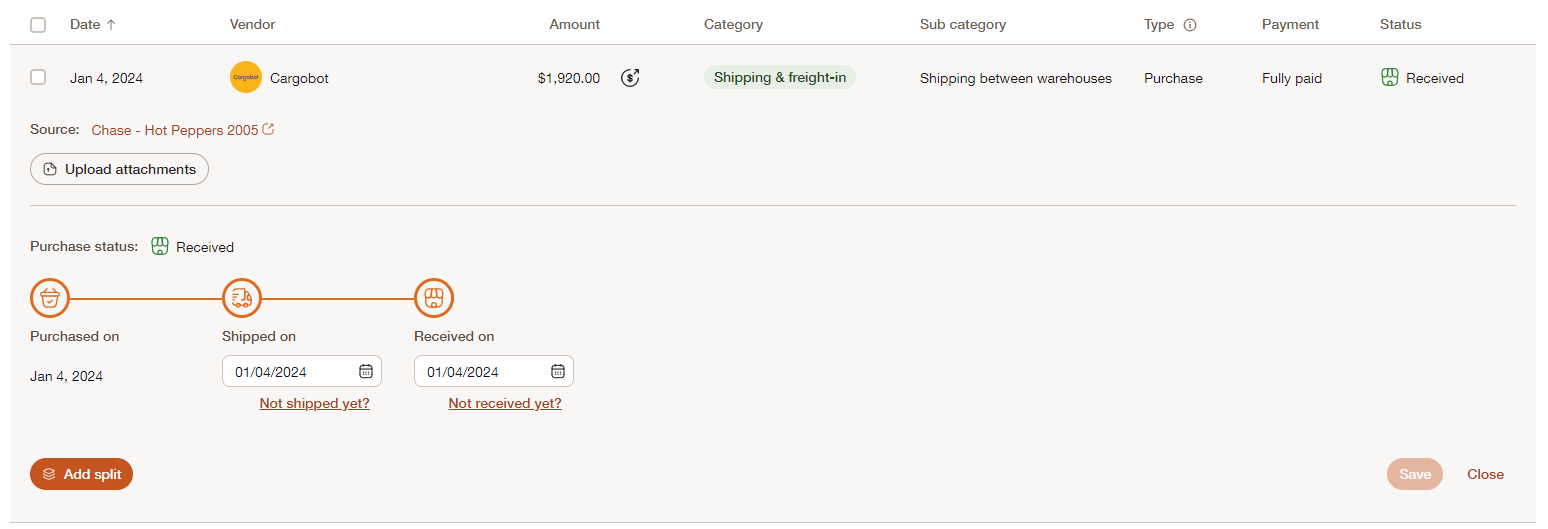
Here you can drill into each transaction and see and update further details, such as:
Shipping date
Purchase received date
Split the purchase into 2 or more transactions or shipments and update the status of each shipment
View the transaction source(e.g., bank/ credit card transaction or bill)
Upload attachments.
When viewing your transaction details, you can see all your bank/ credit card transactions or bills that relate your inventory categories.
Transactions
Shown in the purchases screen with the icon below. These are transactions from your bank accounts or credit cards that were categorized into an inventory-related account (see the list above of all the inventory categories), either automatically by us or by you.
Bills
The Purchases tab may also have inventory-related purchases from vendor bills. These may have been synced automatically if you are using Settle or Bill.com for your vendor bills, or you may have added them manually in our Bills screen.

5. Adding or editing missing/uncategorized inventory transactions
You can manually edit or add transactions if you have uncategorized inventory transactions, or if transactions are in the wrong category.
>To categorize or change the inventory category:
From the menu pane, navigate to Transactions to recategorize specific transactions.
From the menu pane, navigate to Vendors>Bills to add any missing inventory Bills.
6. Adding a historical purchase
If you purchased inventory before your books started in Finaloop, you can also add historical purchases to create opening balances for in-process and in-transit inventory.
For example, you paid for a purchase in December 2024, your books in Finaloop start on Jan 1, 2025, and you only received the purchase in February 2025.
If you received a purchase before your start date with Finaloop, there is no need to add a historical purchase.
To add a historical purchase:
Navigate to the Purchases screen on the side menu pane (Inventory>Purchases tab).
Click Actions > Add a historical payment.
Enter the details in the form.
Click Save.

7. Exception for small business taxpayers
Normally, the IRS requires any business that sells products or holds inventory to report its Cost of Goods Sold (COGS) on an accrual basis, even if you file your tax return on a cash basis.
That means your COGS is based on what you sold, not what you purchased. This rule prevents businesses from deducting the cost of unsold inventory too early (for example, buying extra stock in December just to reduce taxable income).
There’s an IRS exception called the Small Business Taxpayer Exception under the final regulations of IRC §471. If you qualify, you can calculate COGS on a pure cash basis, deducting costs when you purchase the inventory, instead of when you sell it.
To qualify, you must:
Have average annual gross income of less than the small business threshold ($30 million in 2024), and
Not actively track the value of your inventory (a physical count of units without tracking their value is fine).
Most businesses that carry inventory do track inventory value, either in Finaloop or elsewhere, so this exception wouldn't apply. But, if you don't track your inventory value and you meet the small business income threshold, mark the check box on the Opening Balance tab in Finaloop. If not, we’ll make necessary adjustments at year-end by removing the cost of unsold inventory from your COGS to ensure your numbers stay tax-ready and compliant with IRS rules.
IMPORTANT: If you do not track your inventory value at year end, activate the exemption checkbox when you set your opening balance. See the section Set up purchase-based COGS in this article
8. How COGS and inventory are reported in your financials
Here’s an example of how COGS are recorded in the P&L and Balance Sheet using the purchase based method, unless you apply the IRS exemption.
When inventory-related items are purchased, COGS in the P&L are increased.
At year end, the inventory line in the Balance Sheet and the COGS in the P&L are adjusted to produce a closing balance using this formula:.
Opening balance + inventory purchased - inventory sold = closing balance.
Here's an example:
Date | What happened | P&L Impact (COGS $) | Balance Sheet Impact (Inventory $) |
Opening balance |
|
| $2,500 |
January 10 | Purchased 2,000 units @ $1 | +$2,000 | No change |
March 22 | Sold 1,000 units | No change | No change |
September 27 | Purchased 2,000 units @ $1 | +$2,000 | No change |
December 31 | Year end adjustment | -$3,000 of unsold units | +3,000 of unsold units |
Closing balance |
| $1,000 | $5,500 |
Year-end adjustments
At the year end, we’ll ask you for the balance of unsold inventory (in the above example, it’s $5,500) .
We then make the necessary adjustment for tax purposes so that the value of COGS is the value of inventory actually sold, ensuring that you don’t overstate the value of COGS in your tax returns.
There’s an exception to this general approach for small business taxpayers - see the section Exception for small business taxpayers in this article.